---
title: Site Performance Reports
url: "https://pressable.com/knowledgebase/site-performance-reports/"
published: 2022-08-23
modified: 2026-08-13
author: Wayne McWilliams
---
## What the Reports Do
Pressable is now offering Site Performance Reports to help you review and improve the quality of your websites! The screenshot of the site taken at the time of generating this report is the thumbnail you see on your Pressable sites.

The Site Performance Reports show various important site metrics, as well as helpful information on how to address them. The report checks performance, accessibility, SEO and more for both the desktop and mobile versions of a site.
## How the Reports Work
To access a Site Performance Report, do the following:
1. Navigate to your MyPressable Dashboard at
2. Click on the site you’d like to get a report for
3. Click on the **Performance** tab
4. Scroll down to the **Performance Metrics** section
If this is the first time visiting the **Performance** tab for the site, the report may be in the process of scanning automatically, and you’ll see the following:

The report can take around 5 minutes (or less) to generate. Please refresh your browser page and navigate back to the **Performance** tab to check to see if the report is done.
Once ready, the report will look like this:

You can click the dropdown arrow to view the report, and toggle between the **Desktop** and **Mobile** reports:

You can also click the **View Full Report** button to open the report in a new page. When viewing the full report, please note that there is no way to toggle between the **Desktop** and **Mobile** reports without going back to the site’s MyPressable **Performance** page.
Clicking **View Full Report** will open up a page that allows you to toggle through the areas (Performance, Accessibility, Best Practices, SEO) and will outline issues that are found, along with information on how to address them:
## Report Frequency & Filtering
### Automated Performance Report
As a Pressable customer, you get one free Performance Report per site, per month.
Site Performance Reports will automatically be generated one month from the last report, and it will state when the next report will run within the **Performance** tab for each site (shown in the image below).
Once multiple reports have been generated, you can use the **Filter Date** and **Filter Page** options to move through available reports:
### Manually Requested Performance Report
Please Note: In addition to the free Performance Report that is generated once per site, per month, you can also manually request **one** extra performance report once per site, per month.
You will see a button when hovering over the current site screenshot on the site information page. This button allows you to generate a new performance report and will also refresh the screenshot.

After clicking the button, it will disappear for one month and will only reappear after this period has passed. You will see this notice after refreshing the report/screenshot.

You can view these reports as well under the **Performance** tab within the **Performance Metrics** section.
## Performance Score History
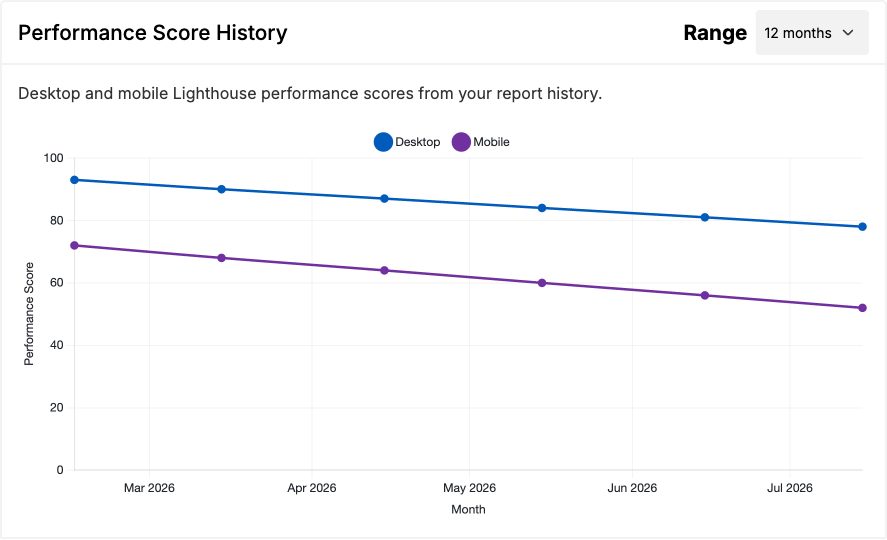
To help you track performance improvements over time, a **Performance Trend Graph** is available directly within the performance dashboard. This feature replaces manual report comparisons by displaying an integrated visual history of your site’s scores.
- To view the Performance Score History, log in to your MyPressable Dashboard and select the site. Navigate to the **Performance** tab and locate the **Integrated History Card** within the speed diagnostics section.
- On the graph, you can view **Desktop vs. Mobile Tracking**. The card plots separate historical trend lines for both desktop and mobile environments on a single chart.
- You can use the dropdown selector in the card header to switch your view between **6-Month** and **12-Month** data timelines.
Note for New Sites If your site is newly created, you will see an inline notice explaining that the history graph will automatically begin populating as your scheduled automated speed reports run over time.
## Performance Report Badges
The latest performance report score is shown within the site listing page in the My.Pressable.com Dashboard () under the **Performance** column:

This column can show three different kinds of badges, depending on how much data we have for that particular site.
**Badge Option #1:** We aim to store **the last two performance report scores** for a given site. A Performance Report executed either because of its free monthly run, or because of a Plugin Schedule execution, will be used to populate these values that we will refer as **Previous Score** and **Latest Score**. Each of those scores can be broken down into **Mobile** and **Desktop**:

**Badge Option #2:** When we only have the **latest scores**, the UI will show the score badges, showing the numbers only:

**Badge Option #3:** We show the **No score** badge when we have no data available:

## White Label Reports
This feature is available to all paying customers, only customers with an active subscription can see this item in their navigation ([Collaborators](https://pressable.com/knowledgebase/how-do-i-add-a-collaborator-guest-account-to-my-site/) will not have this option).
### Upload Custom Logo
To upload a custom logo for performance reports, login to the My.Pressable.com Dashboard and navigate to **Settings > Company** ():

Please Note: These logos will ONLY be used for the Performance Reports feature, this will not be shown anywhere else in your My.Pressable.com Dashboard.
**White Label Performance Report Example:**
## Share Reports
To share a site performance report, navigate to the specific site in your My.Pressable.com Dashboard, then to the **Performance** > **Performance Metrics** section:

By clicking on the **Share Report** button, the following modal shows up:

You can click the **Generate Links** button to generate a link to share both the **Desktop** **Report** and (separately) **Mobile** **Report**:

Please Note: These report links expire six days after being generated. After that, a new set of links needs to be generated.
Please be aware that when an expired link is clicked, users will get an xml response like the following:

Customizing this response to a more comprehensive page is being considered for the future.
### Share White Labeled Reports
By clicking on the **Advance Settings** option, the customer will see the following when **NO** company logo has been uploaded:

When a company logo has been uploaded:
## Download Performance Reports for All Your Sites in One Click
While the Reports page already supported exporting site performance data as a spreadsheet, there was no way to generate a single, readable document covering every site.
This feature adds PDF report generation, allowing customers to create a comprehensive report for all active sites on an account with a single click.
On the [Reports](https://my.pressable.com/reports) page, the **Site Performance Report** card now includes a **Download PDF** button alongside the existing spreadsheet export.
Selecting **Download PDF** generates a single PDF containing performance information for every active site on the account. Once the report has been generated, it is emailed to the account owner as a shareable document.
For each site, the report includes:
- Desktop and mobile performance results
- Performance, Accessibility, Best Practices, and SEO scores
- All six Core Web Vitals
- The active theme
- The list of active plugins
If a site does not yet have performance data available, it is included in a separate section at the end of the report so that no active sites are omitted.
## How to Send Feedback
Please Note: Technical support is limited to helping with bugs only. Please see our [tips for troubleshooting website performance](https://pressable.com/knowledgebase/troubleshooting-website-performance-issues/) for help increasing your site(s) score(s).
If you have an issue generating or viewing a Site Performance Report, please contact us at .