Copy the link to a markdown format of this article for ChatGPT, Claude, Gemini, or your favorite AI.
WooCommerce stores don’t run themselves and a slow ecommerce website can also seriously hurt your business. Missed sales opportunities, revenue loss, and a tarnished reputation are just some potential consequences. Customers expect fast online shopping experiences, and if your site doesn’t deliver, they’re likely to abandon their carts and move on to a competitor.
Many WooCommerce store owners have already taken some basic steps to speed up their online stores. You might have optimized your product images, updated your plugins, removed unnecessary ones, and chosen a lightweight, WooCommerce-optimized theme. These are great starting points, but what if your site is still slow?
To help you figure things out, we’ll look into more advanced WooCommerce speed optimization techniques that go beyond the basics and help you troubleshoot more complicated speed issues.
1. Update Your Website Software
One of the simplest (yet most impactful!) steps in speeding up your WooCommerce store is making sure all your site software is up-to-date. Outdated PHP versions, WordPress installations, and plugins – including WooCommerce – can significantly slow down your site. These updates often contain performance improvements and bug fixes that can help your site run more smoothly and efficiently.
And get this – updating your tools and software to the latest versions will also enhance security. Why? Because running outdated software exposes your site to security vulnerabilities, making it an easier target for hackers.
Understandably, some WooCommerce store owners are hesitant to update, worrying about compatibility issues or disrupting the customer journey. However, this concern can be easily managed by using a staging environment. By testing updates in a staging environment first, you know everything works before making changes live on your site!
2. Review WordPress Themes and Plugins
One of the most common culprits behind slow WooCommerce sites is heavy and bloated themes. Similarly, plugins (especially poorly optimized or no longer in use) can significantly drag down your site’s performance. Conducting a thorough review of your WooCommerce shop’s theme, plugins, and other add-ons can help with identifying and addressing these issues.
WordPress Themes
To determine if your theme is affecting site speed, start by creating a staging site. This will let you experiment without impacting your live site. On the staging site, try out different themes to see if performance improves.
Next up, use query monitoring tools to detect excessive or slow queries. These tools can help you pinpoint areas where your theme might be causing delays. And, while we’re on the topic of tools, use browser developer tools and speed testing sites to create waterfall charts of asset loading, so you can see how different elements of your theme impact load times.
Custom fonts, logos, and other theme customizations should also be optimized. Large, uncompressed images or custom code can slow down your site. Make sure these elements are as efficient as possible.
WordPress Plugins
There are more than 59,000+ plugins on WordPress.org, so it’s no wonder that some of them cause performance issues. To determine which plugins might be creating problems, you can copy your site to a staging environment and start deactivating the plugins one by one to determine which ones might be an issue. If you determine a given plugin is not responsible for the issue, reactivate it, and then move on to the next one.
Some plugins also load numerous scripts or styles or make frequent external API calls, which can bog down your site. Identify these plugins and consider alternatives or optimizations. Along with this, visit the WordPress support forums to see if other users report performance issues with your plugins. This can give you insights into whether a plugin is inherently slow or experiencing temporary problems.
Last, like your themes, make sure all your plugins are up to date. Plugins that are no longer supported by their developers should be removed immediately because they could slow your site down and pose a security risk.
3. Optimize Database Queries and Structure
Your site relies on databases to store and retrieve information, but over time, they can become cluttered, disorganized, and bloated with old or unnecessary data. To avoid a slow website, you need to clean up this clutter and manage how data is stored and accessed. There are several ways you can do this.
Use a Plugin
One effective method is to use plugins such as WP-Optimize or Advanced Database Cleaner. These tools can help you clean up and optimize your database automatically by removing unnecessary data like post revisions, spam comments, and transient options.
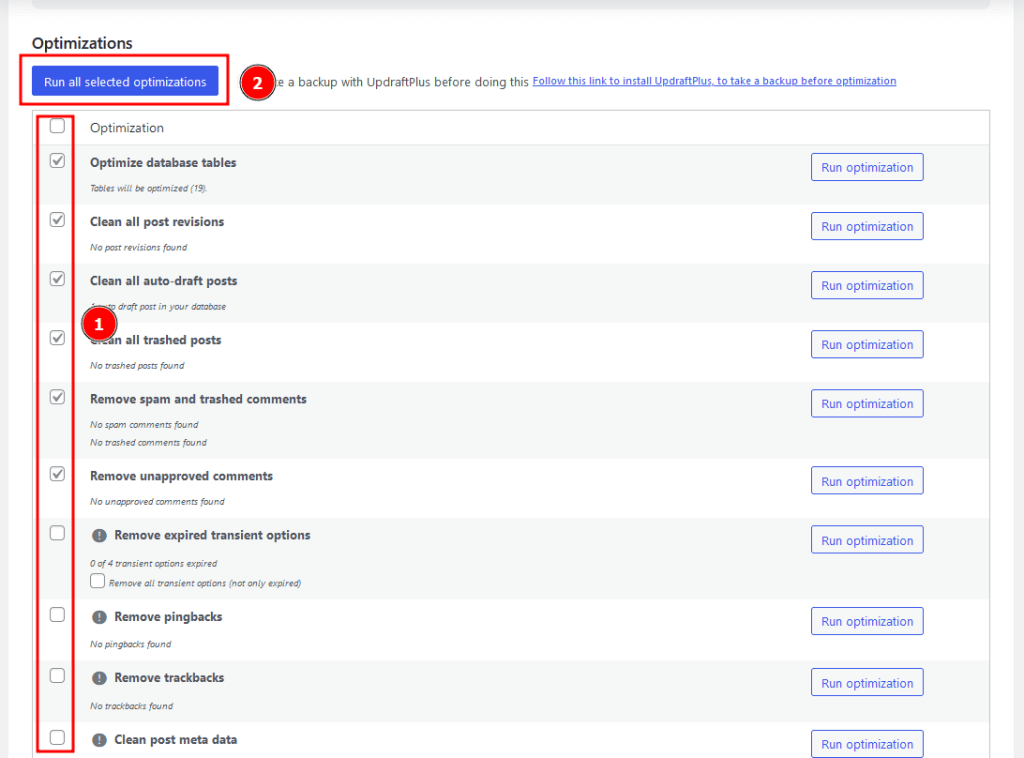
This method will, of course, be the easiest. For example, database optimization with WP-Optimize is as easy as installing and activating the plugin then navigating to WP-Optimize > Database, where you select and run your preferred optimizations.
The pre-checked database optimizations – targeting database tables, post revisions, auto-draft and trashed posts, and spam, trashed, and unapproved comments – are broadly safe to run. Unless you’re an expert, however, you should leave the ones tagged with an exclamation mark – targeting metadata, pingbacks, trackbacks, and transients – unchecked as they’re more intensive, and errors could corrupt your data.
Aside from database optimization, you can use WP-Optimize to speed up your site in the following ways:
Image compression and lazy loading to keep images from slowing down performance without sacrificing quality.
Caching and Gzip compression to serve content to your users faster.
Minifying the code, i.e., HTML, CSS, and JavaScript, to make your site more lightweight while maintaining the existing functionality.
WP-Optimize does a good job of automatically determining and adjusting to your site’s unique setup. As a result, unless something is explicitly marked as risky, it should generally be okay to execute.
Use the Built-in Optimization Tool
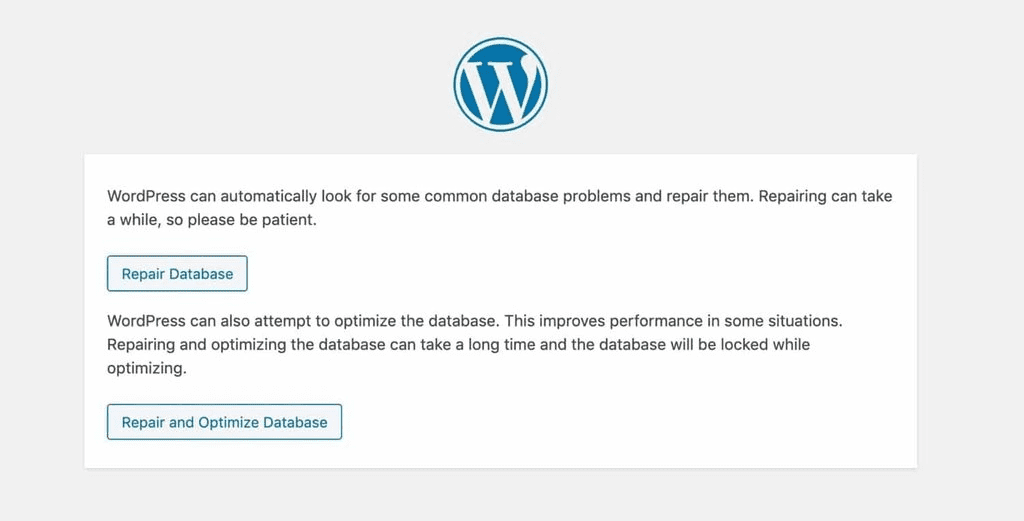
WordPress has a built-in database optimization tool, but it’s deactivated by default.
You can activate and access it by following these steps:
Go into your hosting control panel.
Locate the wp-config.php file in the root folder of your WordPress installation. The exact path will vary between hosting providers.
Open the file in a text editor and find the line that says “/* That’s all, stop editing! Happy blogging. */”
Add define( ‘WP_ALLOW_REPAIR’, true ); right above it and save the file.
Go to https://your-website.com/wp-admin/maint/Repair.php to access the tool.
Click on Repair and Optimize Database to run it.
Edit Tables Directly
Databases use tables to organize their content into rows and columns; these are what you’ll be editing when cleaning up a database manually. Before proceeding with these steps, you’ll want to make a full backup of your site.
Editing tables directly is generally safe since errors aren’t usually something that will break your website. The worst case is you’ll accidentally delete important data, but that’s why you should download a copy of each table before getting started.
If your hosting provider allows you to access your WordPress database, you should see them as soon as you’re in. Contact them to find out if this is an option and how to navigate to the appropriate section.
Depending on your setup, there might be several tables, but you can categorize the defaults based on what data they contain:
Content is managed by wp_posts, wp_postmeta, wp_comments, wp_commentmeta, wp_user, and wp_usermeta.
Categories and tags are managed by wp_terms, wp_termmeta, wp_term_relationships, and wp_term_taxonomy.
Links are managed by wp_links. While this feature was removed from the database as far back as WordPress 3.5, it’s included in new releases for backward compatibility.
The meta tables are used to store additional information and custom fields. The wp_ prefix is the default, but admins can change it so it might be different when you look.
One optimization you can make using this method is by deleting outdated cached data, like the number of items in your WooCommerce store. Getting rid of the old figures saved over time cleans up your database and forces it to update to the latest value.
You can also work with tables directly from the dashboard using a plugin like SQL Buddy – just be sure to note the original values of each field before editing it.
A Content Delivery Network (CDN) is a system of distributed servers located around the globe, designed to deliver web content to users as quickly as possible based on their geographic location. When a user visits your site, the CDN serves up the data from the server closest to them, significantly reducing the distance data must travel.
The benefits of using a CDN for your WooCommerce store are substantial:
By delivering content from the nearest server, a CDN minimizes latency, resulting in faster load times for your users.
A CDN takes over the task of handling requests for static content, such as images, CSS files, and JavaScript. This frees up your main server to handle dynamic content and other essential tasks more efficiently.
CDNs distribute traffic across multiple servers, making your site more resilient to performance issues during traffic spikes. This distribution prevents your main server from becoming overwhelmed and maintains a smooth user experience.
Setting up a CDN for your WooCommerce store is pretty straightforward. You can choose a dedicated CDN service like Cloudflare or you might prefer working with a hosting provider that includes built-in CDN support.
Please note that while CDNs generally enhance site speed, the impact might be less noticeable if your audience is primarily local to your server. However, for stores with a global audience, the performance improvements can be dramatic.
5. Implement Server-Side Caching
Server-side caching is a powerful technique to boost your WooCommerce site’s speed by storing frequently accessed data or generated content on the server. This allows the server to quickly retrieve information without having to regenerate or reprocess it for each request, significantly improving load times and overall performance.
There are several types of server-side caching:
Page caching stores entire HTML pages. So, when a user requests a page, the cached version is served instead of generating the page from scratch, resulting in much faster load times.
Object caching storing database query results, WordPress objects, and API responses. By caching these objects, your site can retrieve them quickly without querying the database repeatedly.
Opcode caching stores compiled PHP code, avoiding the need to recompile the code on each request. This reduces the server load and speeds up the execution of PHP scripts.
Implementing server-side caching can drastically reduce database queries, lead to faster page generation, lower server usage, and improve scalability, ensuring your WooCommerce store runs smoothly even during high-traffic periods.
Want to know more about this? Check out our guide on server-side caching for more information on caching for optimal site performance.
6. Implement HTTP/2 or HTTP/3
HTTP/2 and HTTP/3 are advanced versions of the HTTP protocol designed to significantly improve web performance compared to the older HTTP/1.1. Implementing these protocols can enhance the speed and efficiency of your WooCommerce store.
HTTP/2 was introduced in 2015 and brought a major revision to HTTP/1.1 with several key improvements:
Multiplexing that allows multiple requests and responses to be sent over a single TCP connection simultaneously, reducing latency and improving load times.
Header compression that reduces the overhead of HTTP headers, making data transfer more efficient.
Server pushing so servers can proactively send resources to clients before they are requested, speeding up page loads.
Binary protocol (as opposed to the text-based protocol used in HTTP/1.1) leads to faster processing and lower resource usage.
Standardized in 2022, HTTP/3 is the latest version of the HTTP protocol, offering even more enhancements:
It is built on the QUIC protocol instead of TCP which offers improved performance, especially on unreliable networks.
QUIC’s design reduces the time needed to establish a connection, speeding up the initial load.
HTTP/3 is encrypted by default, enhancing security alongside performance.
While HTTP/3 has its benefits, it’s important to note that it is still in the process of widespread adoption and may not be as universally supported as HTTP/2 yet.
When setting up HTTP/2 or HTTP/3 on your WordPress site, you’ll probably need help from your hosting provider. Make sure your server is properly configured to support these protocols. Many modern hosting services already offer HTTP/2 compatibility, and some are beginning to support HTTP/3.
7. Use a High-Performing Hosting Provider
One of the simplest and most effective ways to improve your WooCommerce site speed is to invest in a high-performance hosting service. For instance, providers powered by Automattic’s WP Cloud get edge caching, which delivers super-fast site speeds by storing content closer to your users.
To know you’re getting the best performance, evaluate the speed provided by your current hosting provider. By performing benchmark testing you can measure and compare your website’s performance results against industry standards.
Remember, when choosing a hosting provider, look for services designed and optimized specifically for WordPress and WooCommerce. These providers offer specialized features and infrastructure tailored to the unique needs of WooCommerce stores – meaning they really know their stuff!
And our most valuable piece of advice? Thoroughly researching potential hosting providers. Look for reviews, performance benchmarks, and testimonials to find the best match for your WooCommerce store.
Investing time in finding the right hosting service will pay off in the form of faster load times, better user experience, and ultimately, higher conversion rates.
8. Use AJAX and Lazy Loading Where Possible
AJAX (Asynchronous JavaScript and XML) allows parts of a web page to be updated without reloading the entire page. This technology is essential for implementing dynamic features such as cart updates, product filtering, and search results, allowing these elements to function without the need for a full-page reload.
Lazy loading, an implementation of AJAX, further optimizes site performance by deferring the loading of non-critical resources, such as images, until they are needed. This reduces the initial load time of a web page and decreases server load by loading elements only when they come into the user’s viewport.
Many WooCommerce plugins integrate AJAX and lazy loading to help stores, especially those with extensive inventories, run more smoothly. These techniques allow for more efficient handling of dynamic content and large amounts of data, ensuring that users can navigate and interact with the store without unnecessary delays.
However, it is important to implement these solutions carefully. Lazy loading should not replace essential site elements such as pagination, which is essential for proper SEO, crawling, and indexing. Using lazy loading in place of pagination can prevent search engines from effectively indexing all of your content, that’s why you should only use it to complement these core elements, such as dynamically loading on-page search results.
Minifying and Optimizing Code
Enhancing the performance of your WooCommerce store involves using AJAX and lazy loading and effectively minifying and optimizing your code. This means removing unnecessary characters like spaces and line breaks from HTML, CSS, and JavaScript files, leading to faster page loads and a better user experience.
To get started with minifying code, here are some tips:
Install plugins such as Autoptimize, WP Rocket, or W3 Total Cache to automate the minification and optimization of your store’s code, making your site leaner and faster.
Combine and inline critical CSS to minimize server requests, speeding up your site’s load time and delivering a seamless visual experience.
Delay the loading of non-essential JavaScript files, so your main content loads quickly and efficiently, improving perceived performance.
Along with this, make sure you regularly review your code to eliminate redundancies, optimize database queries, and use efficient algorithms. By keeping your codebase streamlined, you can enhance your site’s performance, reduce server load, and offer a smoother shopping experience.
9. Review and Optimize Your Inventory
If your WooCommerce site is running slowly and you have a large inventory, it might be time to organize and optimize your product listings.
Start by removing any empty or out-of-stock inventory items that you don’t intend to replenish.
Keeping unnecessary products in your catalog can clutter your database and slow down your site. For products that have SEO value, such as those with existing rankings in search engines or Google Merchant Center listings, make sure to create 301 redirects. This will preserve their SEO benefits and guide users to relevant pages.
Next, review your listings for duplicates and think about consolidating similar products or variations where possible. Reducing redundancy in your inventory simplifies management andenhances site performance.
Additionally, identify slow-loading products and optimize them for better performance. Compressing and resizing images can significantly reduce file sizes and improve load times. Just make sure that all product images are optimized to balance quality and speed effectively – we don’t want any blurry images on your storefront!
10. Maximize Conversions and Increase Site Speed with Pressable
Poor performance and low speeds can seriously impact the profitability of your WooCommerce store. Customers expect fast shopping experiences, and any slowdowns can lead to cart abandonment and lost sales. While basic methods like removing unused plugins can help, implementing advanced speed optimization techniques is important for real impact.
Many of these advanced methods, from server-side caching to HTTP/2 and HTTP/3 implementation, are expertly handled by managed hosting providers like Pressable. Choosing a reliable hosting partner can alleviate much of the stress and workload associated with WooCommerce speed optimization, allowing you to focus on growing your business.
Pressable’s managed hosting plans offer solutions tailored specifically to WooCommerce stores, ensuring your site runs at peak performance. By using their expertise and infrastructure, you can maximize conversions and provide a superior shopping experience for your customers.
Obatarhe is a passionate WordPress enthusiast, dedicated community volunteer, and tech advocate with a proven track record of delivering exceptional customer experiences.
With a background as a Product Expert at Google, he brings extensive technical expertise across various domains including WordPress support, remote technical assistance, and software development. Known for his empathetic approach and problem-solving mindset, Obatarhe consistently earns 5-star ratings by understanding each customer’s unique needs and providing thoughtful, tailored solutions.
In his current role as a Customer Success Engineer, he excels in delivering personalized service that not only resolves issues effectively but also builds lasting customer trust and satisfaction.
Beyond customer support, Obatarhe is skilled in Python, JavaScript/Node.js, PHP, Laravel, HTML, CSS, and Git. He has developed and deployed an election campaign tracking API using Node.js, hosted on Heroku and GitHub and also contributing to some WordPress plugin open source projects showcasing his ability to translate ideas into functional solutions.
When he's not working, Obatarhe enjoys traveling and capturing breathtaking landscape photography—blending his love for technology and nature into a well-rounded lifestyle.
In 2025, artificial intelligence (AI) needs no introduction. Most of us use it in our professional and personal lives. The main AI app services boast hundreds of millions of users who send billions of messages […]
If you’re thinking about selling products online, one of the most important decisions you have to make is which ecommerce platform is right for your business. There are many different options out there, and the […]
Ecommerce landing pages are a valuable step in the digital sales funnel. Unlike generic product or category pages, purpose-built landing pages can significantly improve conversion rates by thoughtfully driving specific actions. You can meet a […]