Copy the link to a markdown format of this article for ChatGPT, Claude, Gemini, or your favorite AI.
Block patterns make designing your WordPress website easier because they provide premade layouts you can quickly add and customize. There are two types of block patterns in WordPress called synced and unsynced. Synced patterns offer a global approach and keep everything consistent. When you update a synced pattern, it will update throughout the website. An unsynced pattern lets you customize each instance, which offers a reusable template that can be tailored to each usage.
This guide covers creating, customizing, managing, and sharing block patterns. You’ll learn practical steps and advanced tips to enhance your WordPress design process. Whether you’re a power user aiming for a consistent look across your site or a designer seeking to streamline your workflow, you’ll know exactly how to create stunning block patterns by the end of this piece!
Why You Should Create Custom Block Patterns
Creating custom block patterns allows you to embed your brand’s visual identity and content structure throughout your website. While the WordPress pattern directory offers many options, custom patterns provide you with greater brand alignment.
Custom patterns can incorporate specialized functionality or integrations with other plugins and theme features. This level of customization is a huge win if you’re a freelancer or agency juggling multiple client projects because it supports personalized, reusable design libraries that provide consistency and smoother workflows at scale.
Custom block patterns also serve as a collaborative bridge between designers and content creators because they translate design vision into practical implementation. They empower the WordPress user to easily create more robust designs, while also making sure they adhere to brand standards.
Custom WordPress patterns allow you to:
Encapsulate your brand’s visual identity
Ensure consistency across your entire site
Tailor designs to your exact needs
Improve workflow efficiency
Facilitate collaboration between designers and content creators
Create reusable design elements for multiple projects
Common use cases for custom block patterns include:
A branded call-to-action section with custom styling
A product showcase grid with specific image sizes and formatting
A team member profile layout with social media integration
A customized testimonial carousel
An event listing format with integrated calendar functionality
Investing time in custom block patterns pays off in streamlined design processes, enhanced site consistency, and improved collaboration among team members.
And they’re all around us. Many WordPress themes, for example, come with custom block patterns to help users quickly build complex layouts without starting from scratch. These patterns provide pre-designed customizable sections like hero areas, testimonials, or service listings.
Here’s a team section in the Twenty Twenty-Four WordPress theme:
Step-By-Step Guide to Creating Your First Block Pattern
This walkthrough will show you how to create a custom block pattern for reuse across your WordPress site. You’ll design, save, and implement your own patterns, tailoring them to your specific needs.
Here’s how to create your first custom block pattern:
1. From your dashboard, go to Posts > Add New Post or Pages > Add New Page to open the block editor.
2. Add any blocks you want, using the same process you would when creating a regular post or page. The example below uses an image, quote, and button.
3. When you’re ready, select every block you want to use in your pattern by dragging your mouse cursor over them like you’d do when selecting text.
4. In the options box that shows up, click the three dots on the right then Create pattern.
Fill in the details for the pattern in the box that pops up. Use a descriptive name so it’s easier to identify and toggle the Synced option depending on what you’re going for.
Click on the Categories field and assign one if you want to; some of your options here are portfolio, contact, featured, gallery, header, and footer. This option makes managing pattern-heavy projects easier.
6. Click Add when you’re done and that’s it!
You can now access the pattern from the block inserter near the top of the page by going to Patterns > My patterns.
How to Override Synced Patterns
Sometimes you’ll want to tweak a synced pattern for a specific page without changing it everywhere else. Overriding lets you do just that, giving you a unique version for one-off situations while keeping the original intact for other uses.
Here’s how you override a synced pattern:
1. When creating a new post or page, insert the pattern by opening the block inserter andthen going to Patterns > My patterns.
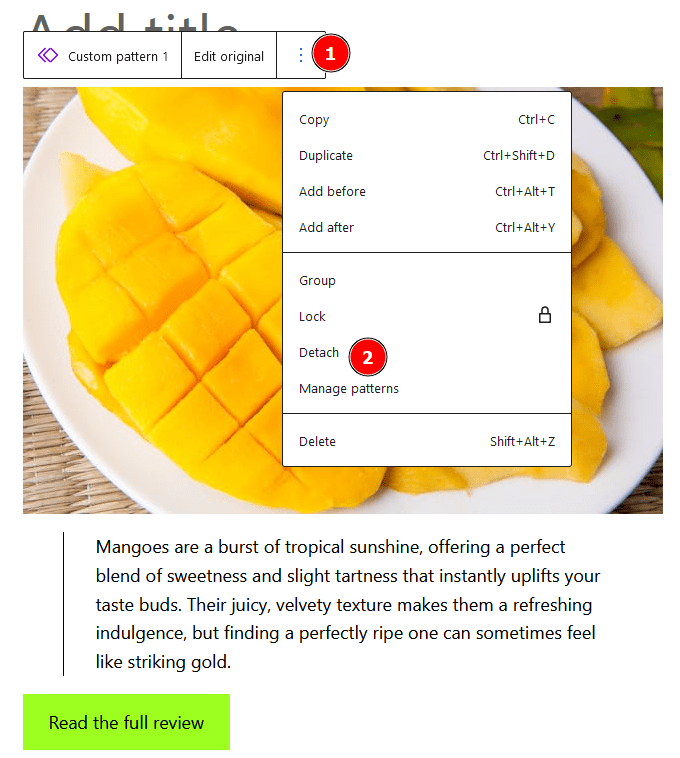
2. With the pattern inserted, click on it then the three dots on the right of the options box.
3. Click on Detach, and this should unsync that specific pattern from the main one so you can edit it independently.
How to Restore a Previous Revision of a Pattern
Made a mistake with your pattern or just prefer an older version? Don’t worry. WordPress keeps track of your changes, allowing you to roll back to previous versions easily.
This safety net lets you experiment freely, knowing you can always return to a working version if needed.
Just follow these steps to restore a pattern:
1. From your WordPress dashboard, go to Appearance > Editor.
2. From the menu on the left, click on Patterns.
3. Click the three dots underneath the pattern you want then Edit.
4. Open the Settings sidebar, then the Pattern tab, then click on the number next to Revisions.
5. Move the slider at the top of the page to the version you want to restore then click on Restore This Version when the button gets ungreyed.
Managing, Sharing, and Reusing Block Patterns Across Sites
If you want to use your custom patterns on multiple sites, this section covers importing, exporting, and reusing block patterns across different WordPress installations. You’ll learn how to share your design work efficiently, saving time and maintaining a consistent look across all your projects.
The first step of the process involves exporting the block pattern:
1. From your WordPress admin dashboard, go to Appearance > Editor.
2. Go to Patterns and find the pattern you want to reuse on a different project.
3. Click on the three dots below it, then on Export as JSON.
4. Download the JSON file.
The next part involves importing it into a new site as a new pattern:
1. From the admin dashboard, go to Appearance > Editor > Patterns.
2. Click on the Add New Pattern button at the top of the page, then Import pattern from JSON.
3. Locate and upload the JSON file you downloaded previously and it should show up under My patterns when finished.
How to Register Block Patterns
Registering a block pattern in WordPress means formally adding a predefined layout of blocks to the block editor, making it accessible for users to quickly insert into their content.
This process involves defining the structure, content, and metadata of the block pattern and then using the register_block_pattern function to make it available in the WordPress editor for reuse.
When you register a block pattern, you create a template that can be easily inserted into posts or pages, streamlining the design process and ensuring consistency across the website.
The basic syntax involves these key parameters:
Title: This parameter defines the name of the block pattern that will appear in the block editor. It should be descriptive and unique for ease of identification.
Content: The actual HTML markup that defines the blocks within the pattern. This could be a combination of core blocks or custom blocks.
Categories: Grouping categories help organize your block patterns in the editor. Examples include ‘text,’ ‘layout,’ or ‘media,’ making it easier for users to browse and find relevant patterns.
Keywords: These are search terms that users can type into the block editor search bar to locate the block pattern quickly.
For example, to register a CTA block pattern that looks like:
Change the code in the content section to code for the relevant blocks in your WordPress code editor.
When registering block patterns, follow these best practices:
Use unique slugs to avoid conflicts with other patterns or themes.
Organize patterns into categories that make sense for your theme or plugin, ensuring a better user experience.
Ensure your block patterns are responsive and adjust well to different screen sizes, especially if they involve images or multi-column layouts.
Troubleshooting Common Issues in Custom Pattern Creation
Advanced block compatibility: Custom patterns may break if they include incompatible advanced blocks. To avoid this, thoroughly test your patterns in various scenarios. Try using them on different pages and posts to ensure they work consistently across your site.
Pattern visibility: Sometimes, patterns might not appear in the editor as expected. This can happen due to complex category assignments or deep linking issues. Double-check that your patterns are registered correctly and review their category assignments. If the problem persists, try simplifying the pattern’s structure or reassigning it to a different category.
Performance optimization: Poorly optimized patterns can slow down your site. To prevent this, optimize images within your patterns, minimize the use of resource-heavy blocks, and considerusing a Content Delivery Network (CDN) for faster load times. Pay attention to the overall complexity of your patterns and aim for a balance between functionality and performance.
Intricate CSS conflicts: Custom styles in your patterns might clash with your theme’s styles. To mitigate this, use unique class names for your pattern elements. Test your patterns across different themes to ensure they maintain their intended appearance. If conflicts persist, consider using more specific CSS selectors or adding a CSS reset within your pattern.
From Creation to Deployment, Pressable Is Here to Help
To fully use custom patterns you need a hosting solution that supports their deployment and performance. Our WP Cloud and free global CDN ensure your custom patterns load quickly and efficiently, while our Smart WordPress Staging Environments simplify the process of creating, testing, and deploying custom patterns. The intuitive dashboard makes pattern management straightforward, allowing you to focus on design rather than technical complexities.
Obatarhe is a passionate WordPress enthusiast, dedicated community volunteer, and tech advocate with a proven track record of delivering exceptional customer experiences.
With a background as a Product Expert at Google, he brings extensive technical expertise across various domains including WordPress support, remote technical assistance, and software development. Known for his empathetic approach and problem-solving mindset, Obatarhe consistently earns 5-star ratings by understanding each customer’s unique needs and providing thoughtful, tailored solutions.
In his current role as a Customer Success Engineer, he excels in delivering personalized service that not only resolves issues effectively but also builds lasting customer trust and satisfaction.
Beyond customer support, Obatarhe is skilled in Python, JavaScript/Node.js, PHP, Laravel, HTML, CSS, and Git. He has developed and deployed an election campaign tracking API using Node.js, hosted on Heroku and GitHub and also contributing to some WordPress plugin open source projects showcasing his ability to translate ideas into functional solutions.
When he's not working, Obatarhe enjoys traveling and capturing breathtaking landscape photography—blending his love for technology and nature into a well-rounded lifestyle.
Choosing the right image file type is one of the lesser-known aspects of building a well-optimized WordPress website. Did you know there are actually many different image formats? Most people know about JPG and PNG […]
Migrating a WordPress site to a new host can be stressful, especially when every second of downtime impacts sales, the user experience, and even search rankings. For an ecommerce site, even a brief outage can […]
Bounce rate is one of the most important metrics to determine the effectiveness and success of your WordPress website. Some sources list the average bounce rate as anywhere from 26% to 70%. But, this will […]