

Are you using LocalWP?
Many migration plugins can make quick work of pushing your local site to production, but you have options if you’d rather do it yourself. This article details two other ways you can migrate your LocalWP site to Pressable:
Migration via SFTP
- STEP 1
- Open your LocalWP app and Export the site.

- Then, click the Export Site button.

- Save the file in .zip file format and save it in a location on your computer easy for you to find.

- Open your LocalWP app and Export the site.
- STEP 2
- Extract or uncompress the exported zip file.

- Once extracted, you will see the following directory structure.

- Extract or uncompress the exported zip file.
- STEP 3
- Open the /app directory and you’ll see the following subdirectories.
- Open the /public directory and look for /wp-content.
Upload the contents of the /wp-content directory to the Pressable Server/srv/htdocs/wp-content/via SFTP.
- Open the /app directory and you’ll see the following subdirectories.
- STEP 4
- Import the SQL file inside the /sql directory via phpMyAdmin.
- STEP 5
- In phpMyAdmin, change the siteurl and home url to the Pressable Staging URL

- or use the following tool to generate the SQL query: https://rudrastyh.com/sql-queries-to-change-wordpress-website-domain and use the phpMyAdmin SQL query tool to run it.

- In phpMyAdmin, change the siteurl and home url to the Pressable Staging URL


Migration via SSH
- STEP 1
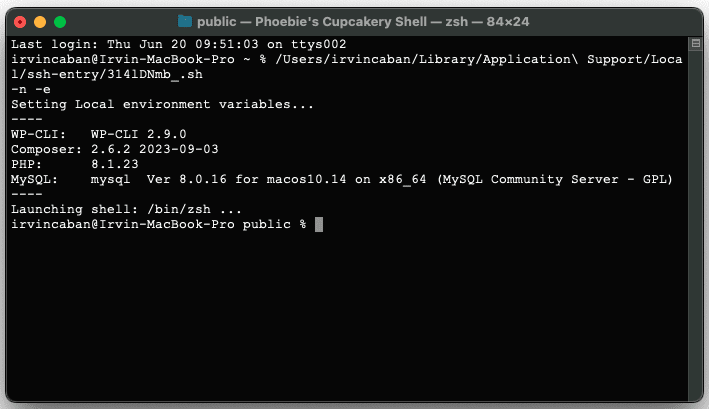
- Click Open site shell
- Click Open site shell
- STEP 2
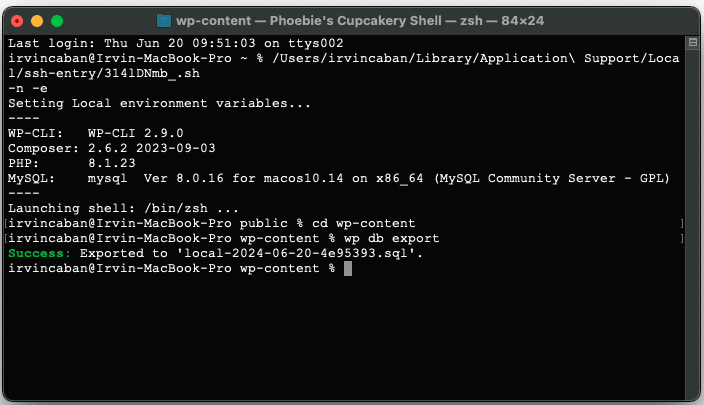
- Navigate to wp-content to export the database:
Execute the following command:cd wp-content
wp db export - Then, execute
cd ..(to go back to the site’s root directory.) - Compress the /wp-content directory in a .zip format. Execute the following command:
zip -r wp-content.zip wp-content
- Navigate to wp-content to export the database:
- STEP 3
- Copy the compressed file to the Pressable Server. Execute the following command:
scp wp-content.zip atomic-ssh-url@ssh.pressable.com:/srv/htdocsatomic-ssh-url@ssh.pressable.comused above is the SSH URL for the site (more information here).
- Copy the compressed file to the Pressable Server. Execute the following command:

Note:
If you received an error saying “Connection closed by 192.0.96.181 port 22” regenerate the SSH/SFTP password and it should work:

- STEP 4
- SSH into the Pressable site and then run the following commands:
- Unzip the wp-content:
unzip wp-content.zip -d /srv/htdocs - Import the backup database:
cd wp-contentwp db import nameofthedatabase.sql - Run search-replace to update the database reference URL:
wp search-replace <localWPsiteDomain> <PressableStagingSiteURL> --all-tables
example:wp search-replace phoebiescupcakery.local phoebiescupcakery.mystagingwebsite.com --all-tables - Clear cache:
wp cache flush
- Unzip the wp-content:
- SSH into the Pressable site and then run the following commands:
You can also follow the instructions on our help article – Manually Migrating Your WordPress Site to Pressable