

Site Notes can be useful when you want to keep site-specific information together inside the site’s dashboard, since notes are created and viewed from that individual site’s Notes page.
Site Notes feature lets you create, view, edit, and delete notes for an individual site directly in MyPressable.
Where to find Site Notes
- Open the site you want to manage in MyPressable.
- In the left-hand menu, click Notes under the site section.
If the site does not have any notes yet, the Notes page shows a Create Note button and a message that no notes are currently available.

How to create a note
- Go to Notes for the site.
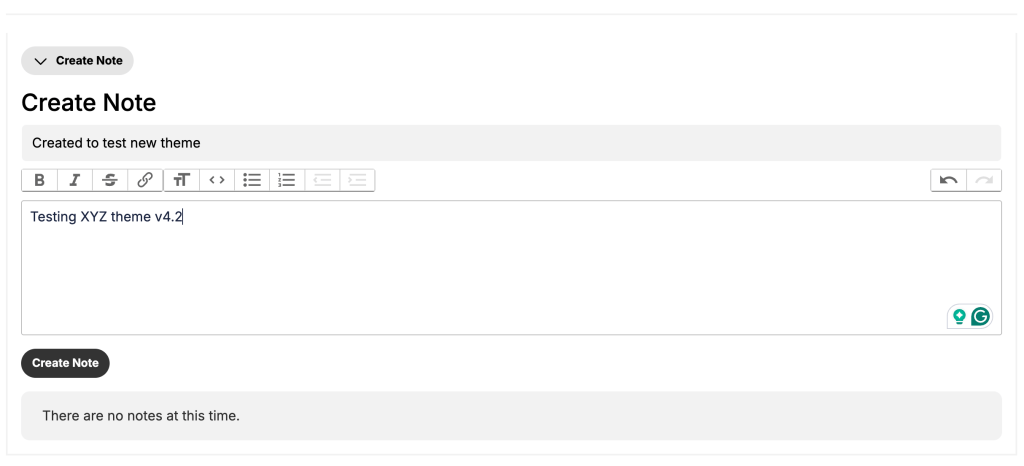
- Click Create Note.
- Enter a title for the note.
- Add the note content in the editor field. Use the formatting toolbar as needed.
- Click Create Note to save the note.
Once a note is created, it appears in the Notes section as a saved entry with:
- The note title.
- The note content.
- The creator information.
- The created or updated time details.
- Edit and Delete options for managing the note.

Edit or Delete a note
- Open the site’s Notes section.
- Find the note you want to manage.
- Click Edit to update the note, or Delete to remove it.
Add the same note to multiple sites
If you manage multiple sites, you can also add the same note in bulk using Bulk Operations.
- Choose Add a Note as the operation.
- Enter the note subject and body once.
- Select the sites you want to update, or apply the note to every site you manage.
- Run the bulk operation to add the note to each selected site.
Each note appears on the selected site’s Notes page just like a note created directly on that site, and anyone with access to that site’s Notes can view it.