

All Pressable sites include several layers of caching enabled by default including object caching, page caching (Batcache) and Edge Cache can be managed from the MyPressable Control Panel. And now with the Pressable Cache Management Plugin, they can also be managed from the WordPress admin area as well!
The Pressable Cache Management Plugin should not be confused with Batcache itself. Batcache is the caching mechanism that is used to speed up your website. The Pressable Cache Management Plugin is built on top of Batcache as a simple tool that allows you to manage Batcache from the WordPress admin area.
Installing The Plugin
To install the plugin you can download it from here.
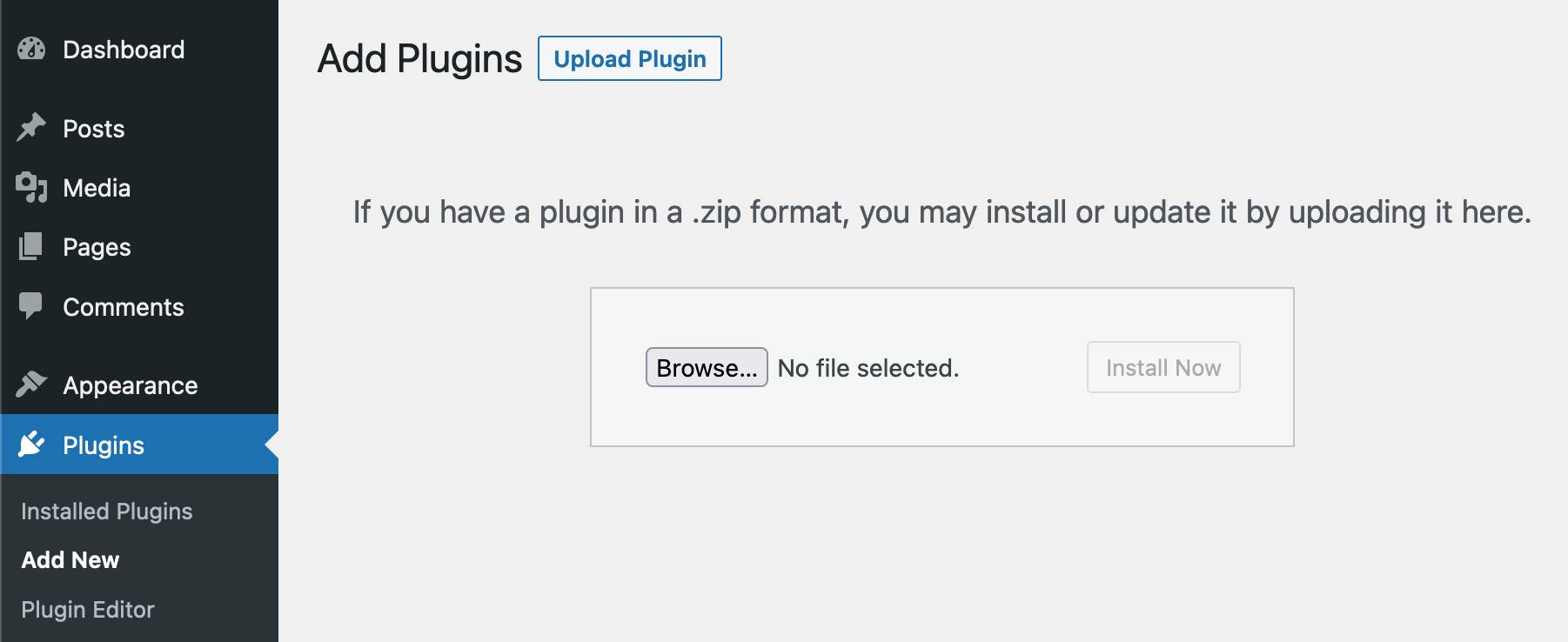
Then go to WordPress admin > Plugin > Add New > Upload Plugin.
Bulk Installing the Plugin
If you’re looking to install or update the plugin across multiple sites, you can use the Bulk Operations tool with the example commands below:
To install and activate the plugin:
wps plugin install https://github.com/pressable/pressable-cache-management/releases/latest/download/pressable-cache-management.zip && wps plugin activate pressable-cache-management
To update the plugin across all sites:
wps plugin install --force https://github.com/pressable/pressable-cache-management/releases/latest/download/pressable-cache-management.zip
The Object Cache
Object caching and Batcache can both be managed through the Object Cache tab of the cache management plugin. The object cache stores database queries in memory using Memcache. You can read more about that here →

Flush Cache
To flush the cache, simply press the “Flush Cache” button (note: this will also flush Batcache).

Batcache
From the object caching tab we can find several options to assist in the control and management of Batcache (static page caching).
Batcache Status
This feature shows the current status of Batcache on your site. If Batcache is active, the status will be displayed as “OK”. If Batcache is inactive, the status will be displayed as “Broken”.
You can use the refresh button inside the status badge to manually check your cache status.


If you use Cloudflare in some cases you’ll see a notice similar to the one we have below. Cloudflare interferes with some of our platform DDoS protections, load balancing, WAF, and other features. Disabling the proxy and caching from Cloudflare should resolve the issue.

Extend Batcache
By default, a cached render of a page is stored for five minutes, at which point a new cached version is created. You can extend the length of time a cached render is saved to one day by enabling this option.

Flush On Update
Automatically flush the cache when the theme or plugins are updated.

Flush On Edit
Automatically flush the cache when pages or posts are modified and saved.

Flush Cache on Page Delete
Automatically flush the cache when a page is deleted.

Flush Cache on Comment Delete
Automatically flush the cache when a comment is deleted.

Flush Batcache for Individual pages
This enables the option to flush Batcache on a page-by-page basis.

Once enabled, you will see the option to flush the cache from the Pages/Posts area in wp-admin:
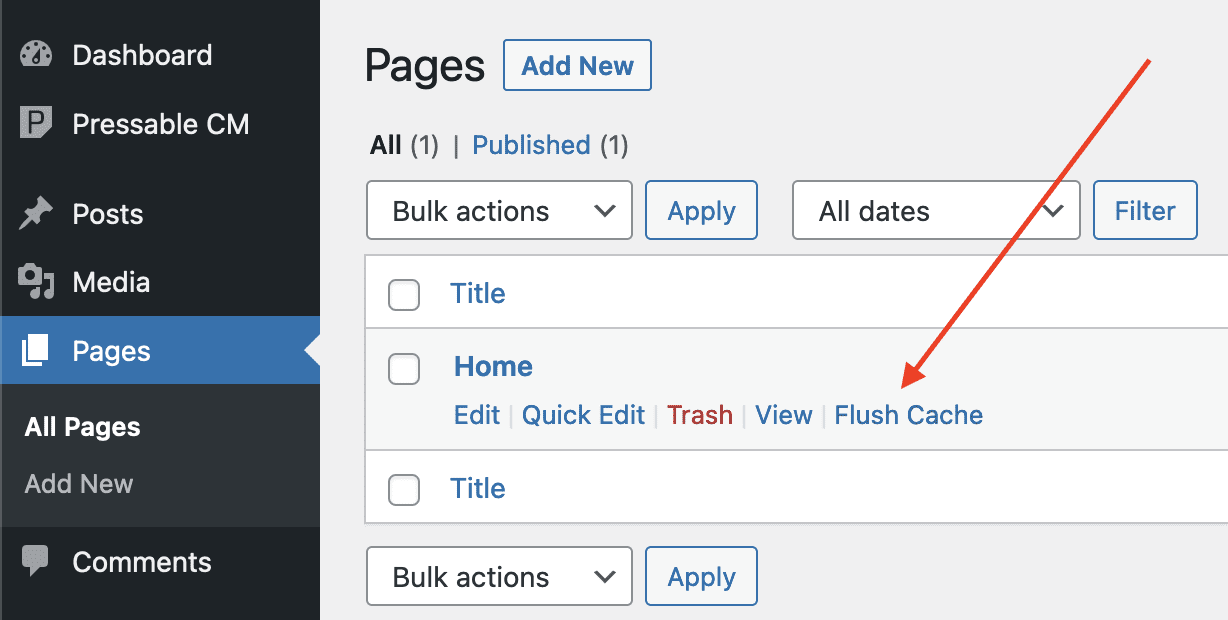
You can also flush the cache from the WP Admin Bar while viewing any page. The Flush Batcache for This Page option will clear cache for both the Object Cache and the Edge Cache.

Flush Batcache automatically for WooCommerce individual product page
This option allows Batcache and Edge Cache to be automatically flushed on a per-page basis whenever a WooCommerce product is updated through the WooCommerce API.

Exclude Page from Batcache

This enables the option to exclude Batcache on a per-page basis. For example, to exclude a page on a particular site, add slashes before and after the page name, like so: /page-name/. To exclude multiple pages, add a comma to separate each page name, like so: /page-name-one/, /page-name-two/. The homepage of a site can also be excluded from Batcache using /your-site.com/.
Enabling any of the cache options will take effect immediately, without the need to manually flush the website cache. All modifications to Batcache are done via mu-plugins.
Edge Cache
From the Edge Cache section, you can enable or disable Edge Cache. When Edge Cache is enabled, you’ll also have the option to purge it directly from this page.

When Edge Cache is enabled, further options are displayed. Edge Cache can be purged by pressing the following button:

Disable Pressable Branding
Do you want to hide the Pressable logo/branding from the cache management plugin? We built a hidden control panel to allow you to do that! Simply click on the heart icon in the line “Built with ♥ by The Pressable CS Team.” found at the bottom of the page.

Disabling the branding will remove our logo and name from the various tabs.

The plugin is not yet available in the WordPress.org directory, but you can still check for updates and update the plugin directly from your site’s Plugins page when a new version becomes available from Github.


If you have any issues with the plugin or feedback please contact our support team, we’re always happy to help.